Customize Your Dashboard with Themes: Make It Uniquely Yours
Customize Your Dashboard with Themes: Make It Uniquely Yours
Transform your dashboards with our new theme customization feature. Choose from beautiful preset themes or create your own custom color scheme. Make your dashboards match your brand, your style, and your vision.
Why Themes Matter
Your dashboard is more than just data visualization—it's a reflection of your brand, your style, and your professional identity. With xlanalysis's new theme customization feature, you can now personalize every aspect of your dashboard's appearance.
Whether you want to match your company's brand colors, create a cohesive visual experience, or simply make your dashboards more visually appealing, themes give you complete control.
Beautiful Preset Themes
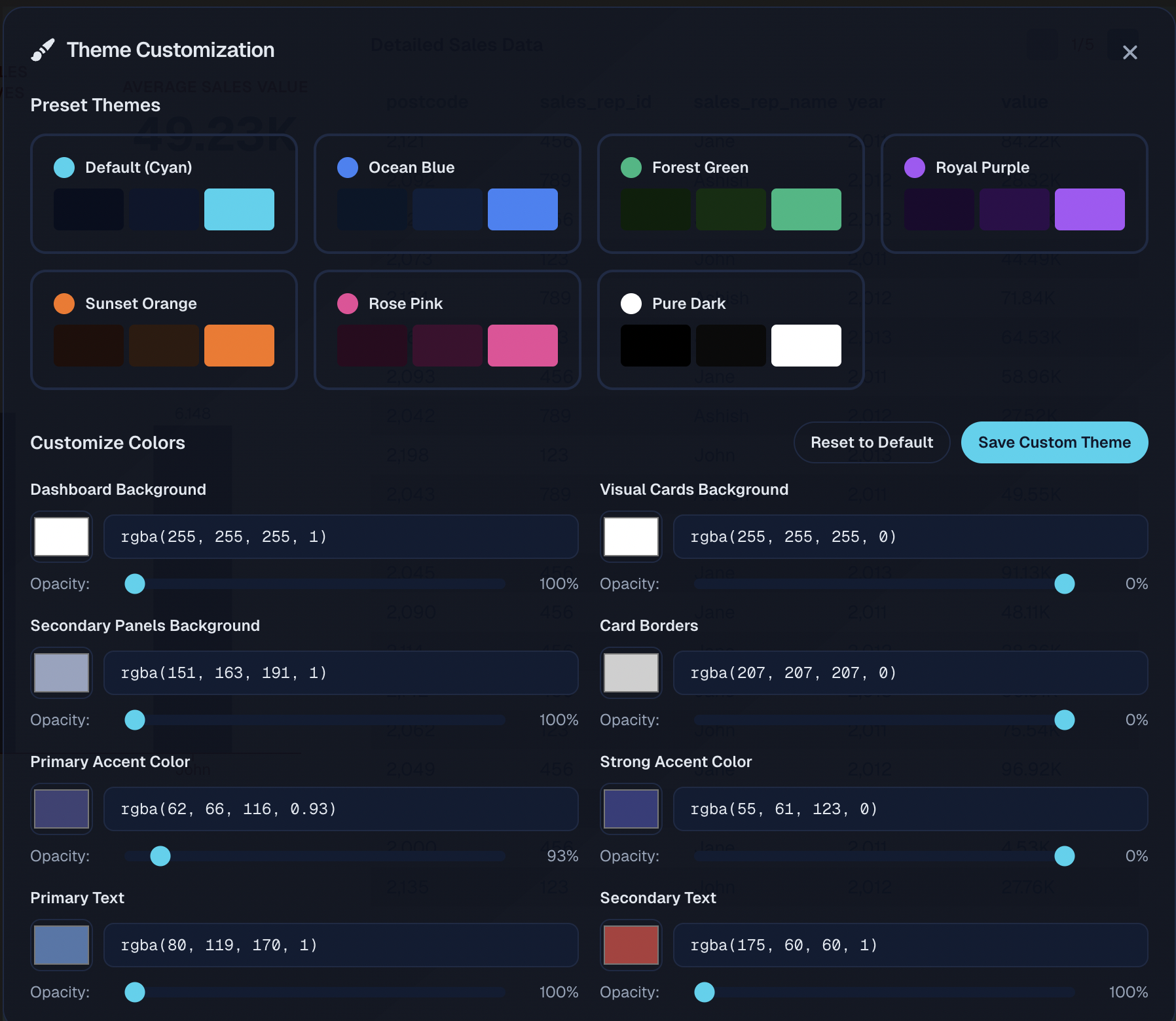
We've created a collection of professionally designed preset themes to get you started:
Default (Cyan)
A modern, clean theme with cyan accents—perfect for professional dashboards that need to look polished and trustworthy.
Ocean Blue
Deep blues that evoke calm and professionalism. Ideal for corporate dashboards and financial reports.
Forest Green
Natural greens that convey growth and sustainability. Great for environmental data, agriculture, or any dashboard where you want to emphasize positive trends.
Royal Purple
Rich purples that suggest creativity and innovation. Perfect for marketing dashboards, creative agencies, or tech companies.
Sunset Orange
Warm oranges that create energy and excitement. Excellent for sales dashboards, performance metrics, or any data that needs to feel dynamic.
Rose Pink
Elegant pinks that add a touch of sophistication. Great for fashion, beauty, or lifestyle brands.
Pure Dark
A sleek dark theme with high contrast. Perfect for presentations, dark mode preferences, or when you want your data to really pop.
Customize Every Color
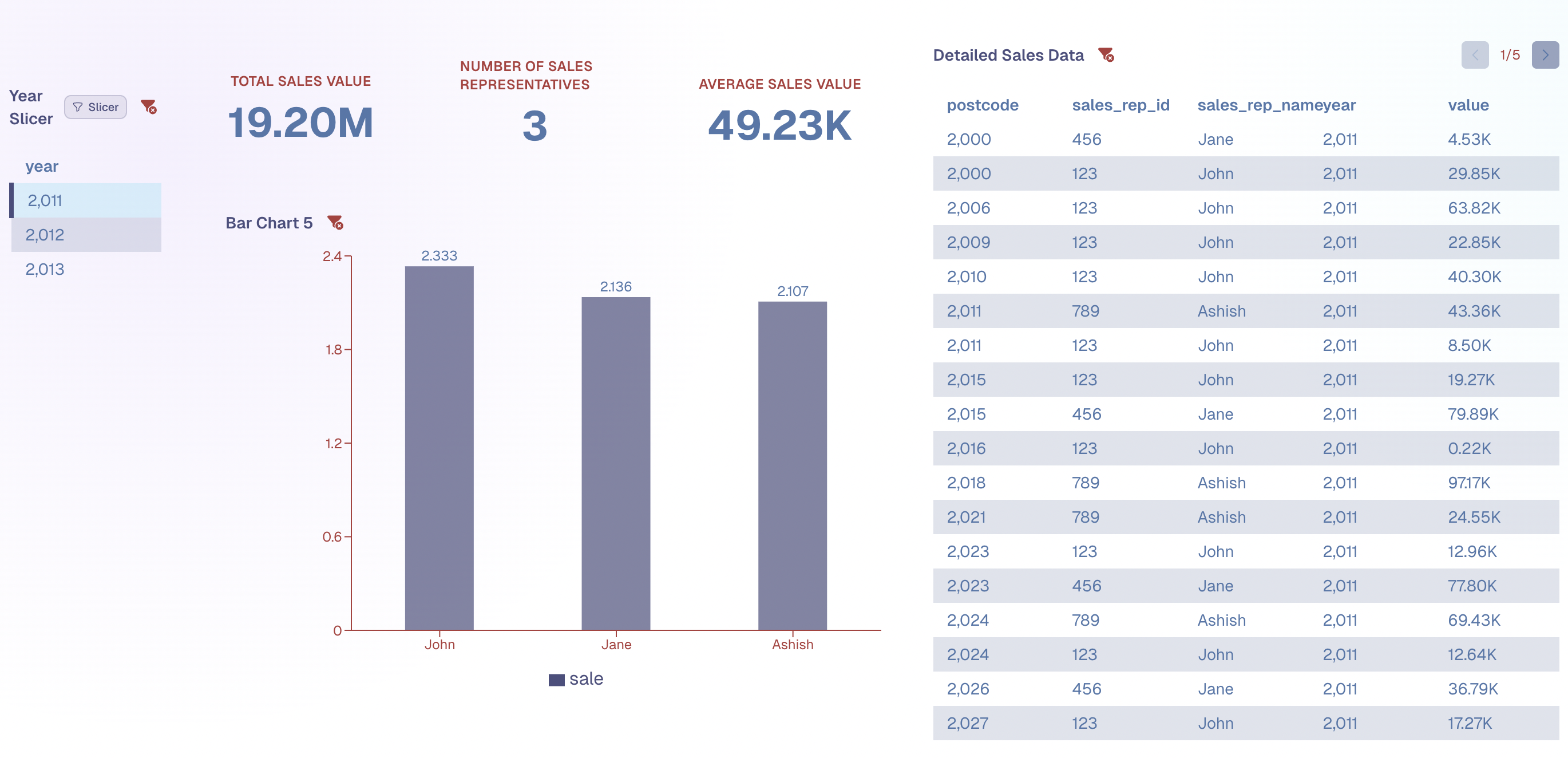
Don't see a theme that matches your brand? Create your own custom theme with complete control over every color:
Dashboard Background
Set the main background color for your entire dashboard canvas.
Visual Cards Background
Control the background color of individual visual cards and panels.
Secondary Panels Background
Customize the background for secondary elements and nested panels.
Card Borders
Define border colors for visual cards and panels.
Primary Accent Color
Set your main accent color used for highlights, links, and interactive elements.
Strong Accent Color
Define a stronger accent color for emphasis and important elements.
Primary Text
Control the main text color for readability.
Secondary Text
Set the color for secondary text and muted information.
Hover Effects
Customize hover states for interactive elements.
Transparency Control
Every color in your custom theme includes transparency control. Adjust the opacity of any color to create depth, layering effects, or subtle backgrounds. Perfect for creating sophisticated visual hierarchies.
How to Use Themes
Step 1: Open Theme Customization
- Go to your dashboard - Open any dashboard in edit mode
- Click the Theme button - Located in the dashboard header (look for the paintbrush icon)
- Theme modal opens - You'll see all available preset themes and customization options
Step 2: Choose a Preset Theme
- Browse preset themes - Scroll through the grid of preset themes
- Preview colors - Each theme shows a color swatch preview
- Click to apply - Select any preset theme to apply it instantly
- See it live - Your dashboard updates immediately with the new theme
Step 3: Customize Colors (Optional)
If you want to create a custom theme:
- Select a base theme - Start with a preset theme that's close to what you want
- Click "Customize Colors" - Scroll down to the color customization section
- Adjust colors - Use the color picker or enter hex/RGBA values directly
- Control transparency - Use the opacity slider for each color
- See changes instantly - Your dashboard updates in real-time as you make changes
- Save your theme - Click "Save Custom Theme" to persist your customizations
Step 4: Save and Share
- Auto-save - Your theme is automatically saved with your dashboard
- Persistent - Your theme persists across sessions and page refreshes
- Shared dashboards - When you share a dashboard, recipients see your custom theme
- Per-dashboard - Each dashboard can have its own unique theme
Best Practices
Match Your Brand
Use your company's brand colors to create dashboards that feel cohesive with your other marketing materials and presentations.
Consider Your Audience
- Corporate clients - Stick with professional blues, grays, or dark themes
- Creative agencies - Bold colors and unique combinations work well
- Presentations - High contrast themes ensure readability on projectors
- Dark mode users - Use dark themes for better viewing in low-light environments
Maintain Readability
- Contrast is key - Ensure text colors have sufficient contrast against backgrounds
- Test accessibility - Use tools to verify your color combinations meet accessibility standards
- Avoid too many colors - Stick to a cohesive color palette (2-3 main colors plus accents)
Use Transparency Wisely
- Subtle backgrounds - Use transparency for layered effects
- Visual hierarchy - Lighter backgrounds can help create depth
- Don't overdo it - Too much transparency can reduce readability
Tips for Custom Themes
Start with a Preset
Don't start from scratch—begin with a preset theme that's close to what you want, then customize from there.
Use Color Theory
- Complementary colors - Colors opposite on the color wheel create dynamic contrast
- Analogous colors - Colors next to each other create harmony
- Monochromatic - Different shades of the same color create sophistication
Test Different Combinations
Try different color combinations and see how they look with your actual data. What works for one dashboard might not work for another.
Save Multiple Versions
Create different theme variations for different use cases:
- Light theme - For daytime viewing or printed reports
- Dark theme - For presentations or low-light environments
- Brand theme - Matching your company colors exactly
Real-World Examples
Sales Dashboard
Use warm colors (orange, red) to create energy and urgency. Perfect for sales metrics and performance tracking.
Financial Dashboard
Professional blues and grays convey trust and stability. Ideal for financial reports and budget tracking.
Marketing Dashboard
Creative colors (purple, pink) suggest innovation and creativity. Great for campaign performance and social media metrics.
Executive Dashboard
Dark themes with high contrast create a premium, executive feel. Perfect for C-suite presentations.
Frequently Asked Questions
Can I use different themes for different dashboards?
Yes! Each dashboard can have its own unique theme. Themes are saved per dashboard, so you can have as many different themes as you have dashboards.
Will my theme be visible when I share a dashboard?
Yes! When you share a dashboard link, recipients will see your custom theme exactly as you designed it.
Can I reset to the default theme?
Yes! Click "Reset to Default" in the theme customization modal to return to the default theme at any time.
Do themes affect performance?
No! Themes are purely visual and don't impact dashboard performance or query execution speed.
Can I export my custom theme?
Currently, themes are saved per dashboard. We're working on theme templates that you can reuse across multiple dashboards—coming soon!
Get Started Today
Ready to make your dashboards uniquely yours?
- Open any dashboard - Go to your dashboards page and open a dashboard
- Click the Theme button - Look for the paintbrush icon in the dashboard header
- Choose or customize - Select a preset theme or create your own
- Save and enjoy - Your theme is saved automatically
No coding required. No design skills needed. Just beautiful, personalized dashboards.
Conclusion
Themes are more than just colors—they're a way to make your dashboards feel like yours. Whether you're matching your brand, creating a cohesive visual experience, or simply making your data more beautiful, themes give you the power to customize every aspect of your dashboard's appearance.
Start customizing your dashboards today and see how themes can transform your data visualization experience.
Ready to Build Your Own Dashboards?
Start creating professional dashboards from your Excel files today.